

Astronomy | GXR · GR · RX100 M1 · RX100 M4 · RX10 M3/4 · TZ202 · X Vario · M240 · General | Photos | Conf. Places | Calendars | Art
Ricoh GXR: Manual Focusing and Focusing Support with M-Mount
How is Manual Focusing Supported on the GXR M-Mount Unit? - Overview | Manual Focus | Support for Manual Focusing | Conclusions
Archive
On this page, I describe how focusing works with the GXR with the M-Mount expansion unit and how it is supported. This unit uses manual lenses only and therefore has to be focused manually.
Note: For the other GXR camera units, see page Manual Focusing and Focusing Support. For an overview of manual focusing methodes, see page Manual Focusing Methods.
How is Manual Focusing Supported on the GXR M-Mount Unit? - Overview
The GXR M-Mount unit offers only one method for focusing manually: The user sets the focus manually by turning the focus ring of the (manual) lens.
Manual focusing is furthermore supported in several ways:
- Depth of field scale: You can use the depth of field scale on the lens if there is one.
- Enlargement: A section of the picture can be enlarged 2 x, 4 x, or 8 x. Either, a section of the display shows the enlarged section ("Enlarge Part", lower quality), or the enlarged section is shown full screen (better quality). The enlarged section can be moved in either mode.
- Focus assist (two methods): The GXR offers two methods for supporting manual focusing: Mode 1 creates "sparkling" edges in a colored image, mode 2 emphasizes edges in a B&W image (high pass filter).
Enlargement was considerably improved and focus assist introduced with firmware update 1.40 that accompanied the introduction of the M-mount expansion unit.
Manual Focus
The M-mount expansion unit offers only manual focus. Therefore, there isn't even a "Focus" item in the "Shooting" menu (and nothing that you can assign to the "Adjust lever settings"). Thus, you set the focus by turning the manual focus ring of the lens that you use with the M-mount expansion unit.
Manual focusing can be performed using:
- The image displayed by the viewfinder/LCD screen (sharpness of the image, focus aids offered by the focus assist function)
- The distance and depth of field scales on the lens
- Or a combination of both
For example, you set the focus on the lens in advance and correct it using the viewfinder/LCD screen. See also the "Appendix Manual Focusing Methods" below.
Support for Manual Focusing
This section is nearly identical to that for the GXR camera units, but not completely.
Distance
The most simple approach to manual focusing is to estimate the distance and set it on the distance scale. In contrast to focusing methods that involve depth of field information, this is correct when using full-frame lenses on an APS-C camera (but the depth of field is different - see below).
Depth of Field Display
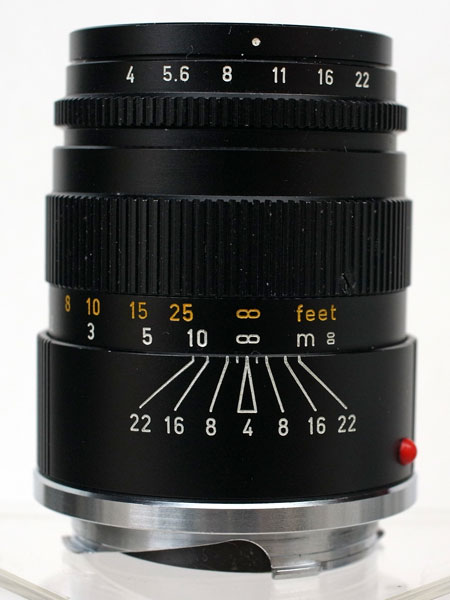
Most manual (or range-finder) lenses offer a depth of field indication on the lens. This allows you to apply the so-called "zone focusing" method or to set the "hyperfocal distance" (everything is sharp beginning at a certain distance to infinity).
 |
 |
Photos: Distance scale on manual M-bayonet lenses - Leitz Elmar-C 90mm f/4 (left) and Voigtländer Color Skopar Pancake II 35mm f/2.5 (right)
There is, however, one caveat with this approach that I cover in the FAQ in more detail (and which was discussed on the dpreview site): When you use full-frame lenses on a APS-C camera, the actual depth of field does no longer correspond to the depth of field scale on the lens:
- Given a particular full-frame lens, if you use the DOF scale marking for a focus zone on the base of a certain aperture, set the lens's aperture to the next smaller opening. For example, if you use the f/8 markers, set the aperture to f/11 instead of f/8). (Adapted from the forum posting)
- Or, the other way round: if you want to use, for example, an aperture of f/8, use the f/5.6 DOF indicators for estimating DOF (that is, the DOF indicators for the next wider opening).
The exact factor is given by the crop factor (in this case, 1.5 f-stops), but one stop is close enough given the resolution of the DOF scale markings. (Adapted from the forum posting)
Magnification
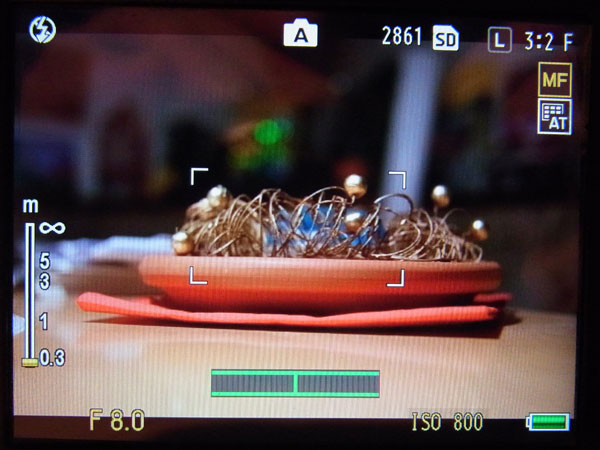
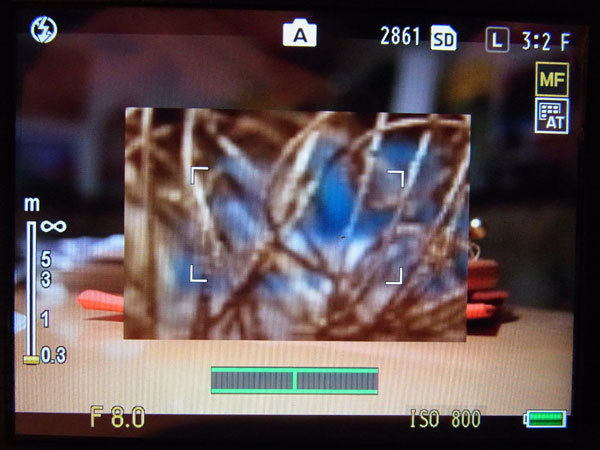
A section of the picture can be magnified 2x, 4x, or 8x ("Enlarged View mode"; since firmware update 1.29). The enlarged section is either shown in a portion of the display ("Enlarge Part", lower quality) or full screen ("Enlarge All", better quality) (since firmware update 1.40). The enlarged section can be moved in either mode.
Note: The Ricoh GXR manual as well as the menus sometime use both terms "magnification" and "enlarge"...
Basic Procedure
- Turn on screen magnification: Press the "Menu" button for about a second. Initially, only a section of the screen is enlarged ("Enlarge Part")
- Change screen magnification to fullscreen: Press the "Menu" button for about a second ("Enlarge All").
- Turn off screen magnification: Press the "Menu" button for about a second when if pull screen mode, otherwise repeat the procedure when in "Enlarge Part" mode.
Thus, by repeatedly pressing the "Menu" button for about a second, you can cycle through the magnification modes.
 |
 |
 |
Photos: No magnification (left), "Enlarge Part" (center), and "Enlarge All" (right); in the latter case, a small display indicates where the enlargement is located in the image
Details
If you want to avoid cycling through the modes you can can set either "Enlarge All" or "Enlarge Part" to one of the function buttons Fn1 or Fn2. I use this setting for the M-mount expansion unit, but not for the regular camera units (there, I reserve the respective function button for switching between AF and MF). For the M-mount expansion unit, I set one function button to "Enlarge All" and one to "Focus assist" (sometimes, I change the arrangement...).
Magnification ratio can be set in the "Shooting" menu (item "Magnification" ratio). You can change the magnification ratio dynamically by pressing the self timer button for more than a second. Then you can select between a magnification of 2x, 4x, or 8x.
You can move the enlarged section of the screen ("Mode Target") by pressing the "Adjust lever" button, then selecting the AF/AE setting in the fifth tab of the "Key Customs Settings", and using the direction buttons. Personally, I find this function only useful if the camera resides on a tripod.
When you half-press the shutter-release button in "Enlarge All" mode (fullscreen), magnification is turned off, and you see the image in normal magnification so that you can frame the photo. This is not the case for the "Enlarge Part" mode (but the manual does not distinguish between both modes). Personally, I prefer the behavior of the "Enlarge All" mode. It also allows me to switch between framing and focusing at will.
Last, but not least, in the "Setup" menu you can set that enlargement is turned off after shutter-release (item "Zoom Display Release") so that you have to turn it on when you need it again:
- Zoom Display Release: You can select whether to maintain or cancel the enlarged view after shooting pictures in "Enlarged View" mode. Selecting "Off " maintains magnification and "On" cancels it after a picture is shot.
"Secret" Information
Now comes information that you cannot find in the manual. First, the quality of the 4x and 8x enlargement has clearly improved since firmware update 1.40. Secondly, the image quality of fullscreen mode is considerably better than when only a section of the screen displays the enlarged section. For manual focusing it is, therefore evident that only an enlarged fullscreen view is useful - I often use it even without focus assist.
The manual is also not clear about the different behaviors of the "Enlarge Part" and "Enlarge All" modes: It tells that pressing the shutter-release button half down turns off magnification. Actually, this happens only for the "Enlarge All" mode - one more argument that speaks for using this mode...
My Preferred Settings
Currently, I initiate magnification mode "Enlarge All" by pressing the "Fn2" button. Usually, I set the magnification ratio to 4x or 8x.
Focus Assist
The GXR offers two methods for supporting manual focusing:
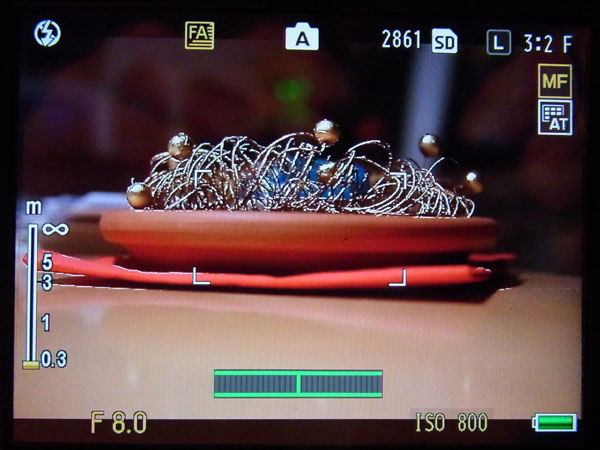
- Mode 1 creates "sparkling" edges in a colored image: Shape outlines for subjects/objects in focus are enhanced.
- Mode 2 emphasizes edges in a B&W image (high pass filter): The picture display switches to black and white, and the area in focus glows in white.
There is no cycling through the focus assist modes as there is for the screen magnification mode and macro modes. You have to select the mode in the "Setup" menu, item "Focus assist selection" (Mode 1 or 2). There is also no button for selecting a focus assist mode (after pressing it for a second). Actually, there is no button available any more, but maybe Ricoh will find a solution... As you can see, Ricoh is inconsistent here in comparison with the magnification and macro modes...
Most users prefer focus assist mode 2, whereas I prefer mode 1 or no focus assist at all, that is, only full screen magnification. Focus assist can, of course, be combined with screen magnification.
 |
 |
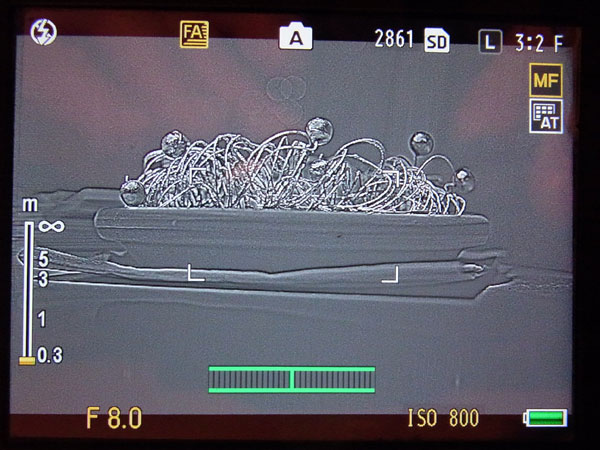 |
Photos: No focus assist (left, focus assist mode 1 (center) and mode 2 (right)
Conclusions
There is no alternative to manual focus when you use the M-mount expansion unit. Thus, here the question is how you can do it with ease and fast. The "normal" screen display is usually not appropriate for focusing manually, because the EVF/LCD screen resolution is too low. Therefore, you have to pursue the following two routes (or combine them):
- Use the image displayed by the viewfinder/LCD screen (sharpness of the image, focus aids offered by the focus assist function)
- Use the distance and depth of field scales on the lens
Both approaches have their advantages and disadvantages and "their" applications:
- If you are good at estimating distances you are definitely faster in presetting the focus on the lens; also note that when using full-format lenses, you have to apply the DOF marks of the aperture one f-stop more open* than the aperture that you set (for example, use the f/5.6 marks when you set an aperture of f/8 on the lens)
- If you need accurate focus you have to employ focusing aids such as magnification and/or focus assist
*) Or more exactly, 1.3 to 1.5 f-stops more open (but one f-stop is OK)
I found out that with fullscreen magnification I can usually do without focus assist, particularly because you can simply press the shutter-release button to view the complete image for framing. Releasing the button is no problem, because there is no autofocus that needs to re-find its target and thus, consumes time.
I also set the unit to turn magnification off after taking a picture (menu "Setup", item "Zoom Display Release" -> "on") , because starting with an enlarged view can be disturbing (which is in my opinion worse than having to press a function button for enlargement once again).
Note: For an overview of manual focusing methods, see page Manual Focusing Methods.
|
made by  on a mac! on a mac! |


| 19.11.2020 |